Send SMS from the Command Line and Receive Replies by Email
SMSCMD goes beyond sending individual and bulk SMS messages. In the USA and Canada, you can send SMS through SMSCMD or our web panel. Your customers can then reply directly from their phones with a text message or photo. Each reply is forwarded to your support team's email inbox together with the original sent message for context. This helps your team answer questions faster, receive photographic proof or evidence, handle delivery and order cases, and provide better customer service that can help you win more customers. Register to send a test SMS, reply to it from your phone, and receive the reply text and original message in your email inbox.
After registering, you can also log in to the Smartbooth member panel to send SMS, review SMS-text and MMS-photo replies, and manage the block list. You can still send SMS from Windows Command Prompt, a Linux shell, scripts, cron jobs, monitoring tools, or Windows Task Scheduler. UTF-8/Unicode is supported, and you can call SMSCMD from C, C#, Java, or VB, or use the HTTPS API directly.
Receive Customer Text and Photo Replies by Email (USA & Canada)
Customers can reply with text or pictures—not just receive one-way messages.
-
✓SMS text replies forwarded to your email inboxWhen a customer replies by SMS, your support or sales team receives an email containing the sender's number, timestamp, reply text, and the last sent SMS for context.
-
✓MMS photo replies forwarded to your email inboxCustomers can send delivery photos, ticket images, receipts, screenshots, ID or license images, and other proof or evidence. Links to the MMS pictures are forwarded to your email inbox.
-
✓Block list managementNumbers are automatically added to the block list when a customer replies with the keyword STOP, helping you manage opt-out requests for USA/Canada messaging.
-
✓Send SMS and review replies in the web panel after registrationLog in through the website to send SMS, view SMS-text and MMS-photo reply logs, and manage your block list without using the command line.
Why this helps your business
Better customer service encourages more responses and builds trust.
More than one-way SMS
Many SMS tools only send notifications. SMSCMD helps you continue the conversation by forwarding SMS/MMS replies to the right email inbox.
Customer service workflow
Your team can respond faster because the email includes the customer's reply, sender number, time, and related outgoing message.
Photos become useful proof
MMS photo replies help with delivery confirmation, damaged-item reports, ticket questions, billing proof, and other customer-service cases.
Send SMS and Review SMS/MMS Reply Logs in the Web Panel
Send SMS and manage replies directly from the browser.
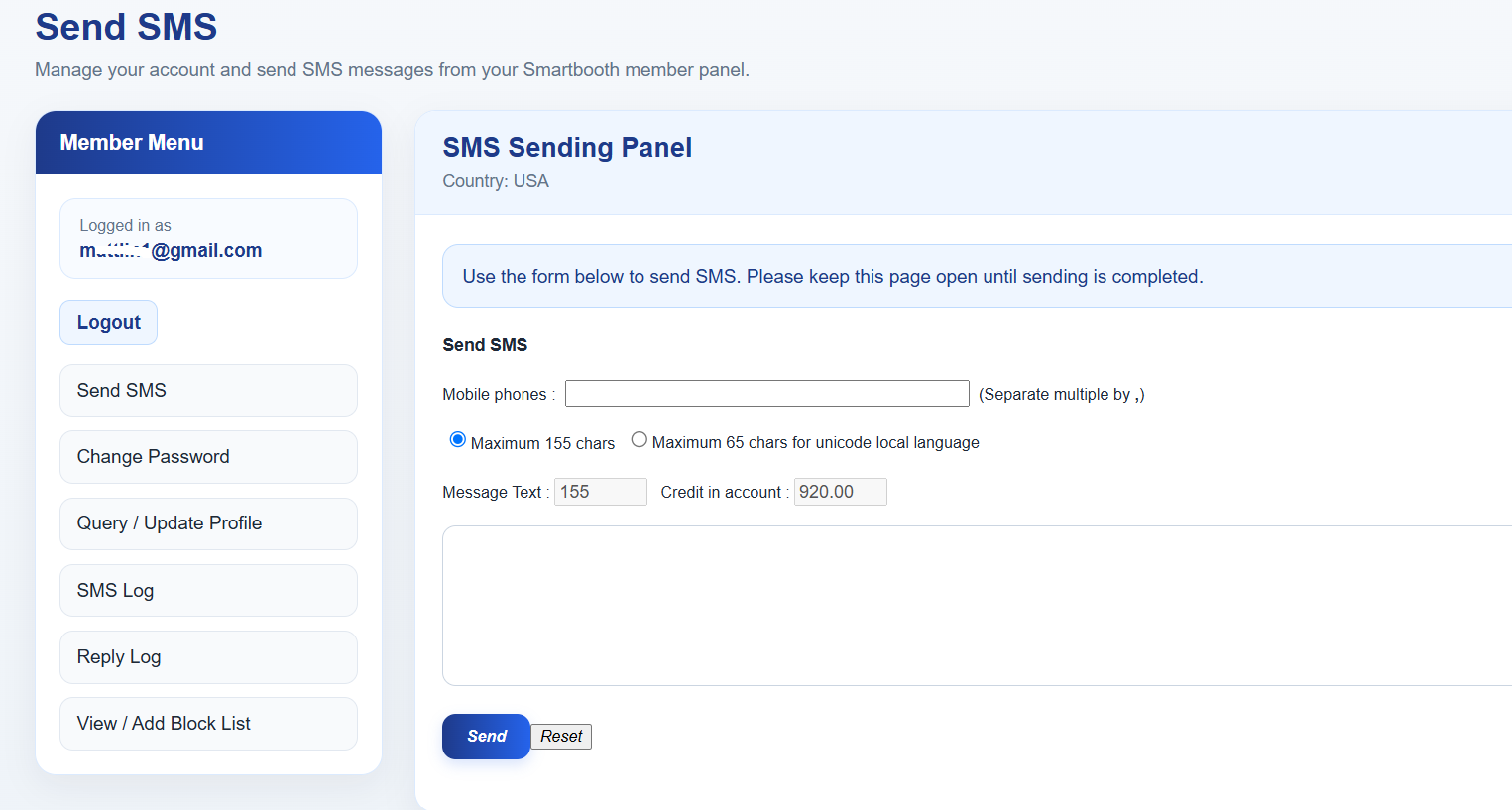
Send SMS from the website
Use the member panel when you do not want to use the command line. Enter phone numbers, compose your message, and send it directly from the browser.
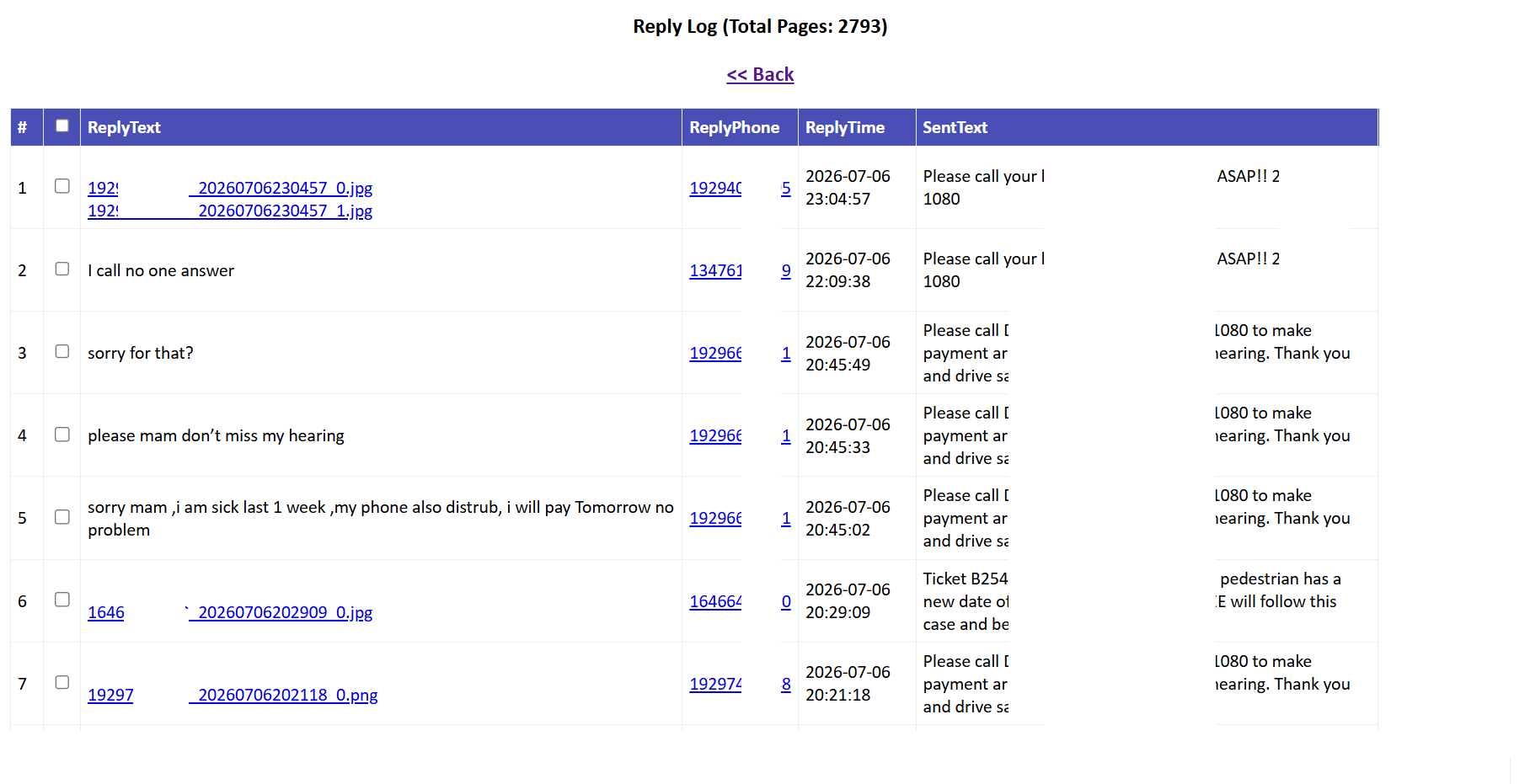
Check SMS/MMS replies
Open Reply Log to review customer SMS-text and MMS-photo replies. The original sent message is also shown to provide helpful context.
Manage block list
View and add blocked numbers from the website panel to support opt-out and customer messaging control.
Usage
Copy/paste examples for Windows and Linux.
Basic
Send to one or multiple numbers (comma-separated).
smscmd "hello" "7186791234,+447121027123"
With credentials
Pass your registered email address and password directly.
smscmd "sms text" "7186791234,+447121027123" "registered@smartbooth.com" "abc123"
Debug mode
Preview the API request string without sending a message.
smscmd "test" "7186791234" -debug
Message and phone-number input from files
You can also send messages using file-based input: view an example.
smscmd "text.txt" "phone.txt"
Windows
Download, unzip, run. No installation required.
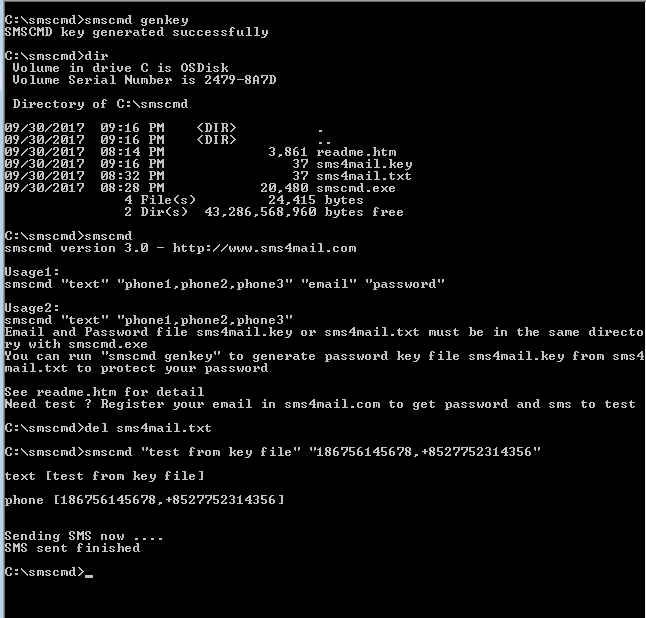
- Download and unzip smscmd.zip → smscmd.exe, readme.htm, smscmdfile.txt
- Run it from Command Prompt. SMSCMD can easily be called by any program or scheduler.
- Messages can contain up to 155 characters. Use a local number, or prefix an international number with +.
- Usage help:
smscmd help - Code samples (Java, VB, Visual C++, and C#): view examples
smscmd "sms text" "7186791234,+447121027123" "registered@smartbooth.com" "abc123"
smscmd genkey to create the encrypted smscmd.key file. You can then share the key file with your team more safely.
Linux
Download, unzip, run. No installation required.
- Run it directly in a Linux shell. No installation is required.
- Use inline credentials or an encrypted credential file.
- Use
smscmd genkeyto create smscmd.key from smscmdfile.txt. - Good for cron jobs, backup alerts, monitoring tools, and server automation.
# unzip package
unzip smscmd_linux.zip

# send SMS with inline credentials
./smscmd "this is a test" "4357501234,+447748071234" "your@email.com" "password"

# generate encrypted key
./smscmd genkey
rm smscmdfile.txt

# send SMS using encrypted credentials
./smscmd "test message from encrypted file" "4357501234,+447748071234"
Integration Examples
Run local commands or call the SmartBooth HTTPS API directly.
cURL
curl "https://www.smartbooth.com/smsmail/php/sendsmsen1.php?email=your_email@example.com&pwd=your_password&text=hello&to=1234567890"
Script calls
perl   smscmd.pl  "text" "phone1,phone2"
python smscmd.py  "text" "phone1,phone2"
php    smscmd.php "text" "phone1,phone2"
Use cases
- Server and network alerts
- Backup success or failure notices
- Scheduled task notifications
- Application error reporting
HTTPS API Example
Call the SmartBooth SMS endpoint directly with an HTTPS GET request.
https://www.smartbooth.com/smsmail/php/sendsmsen1.php?email=your_email@example.com&pwd=your_password&text=hello&to=1234567890
Endpoint: smsmail/php/sendsmsen1.php
Method: GET
Recommended: always use HTTPS
Credential File Security
Deploy more safely with an encrypted key file.
vi smscmdfile.txt
./smscmd genkey
rm smscmdfile.txt
After generating smscmd.key, you can move only the executable and the encrypted key file to the target system for a cleaner and safer setup.
Customer Use Cases: SMS/MMS Replies Forwarded to Email
Real-world service scenarios for customers in the USA and Canada.
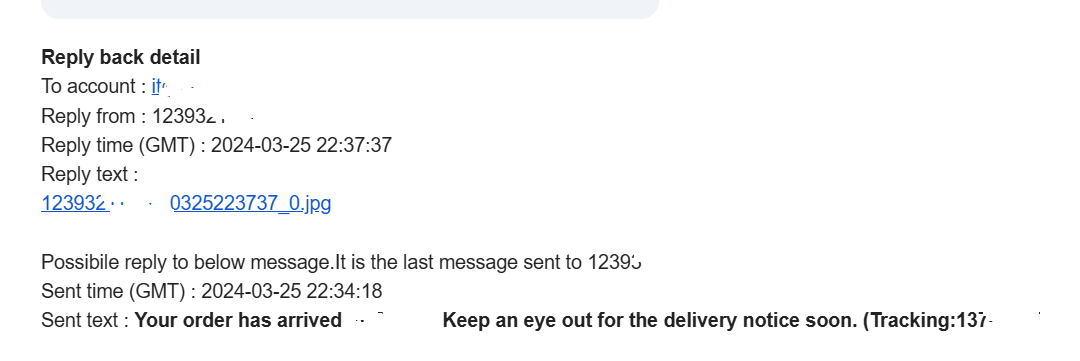
Good for delivery support
- Order-arrival and delivery-notice follow-up
- Customers can send photographic proof or questions
- The support team sees the last sent SMS for context
- Faster issue handling and better service quality
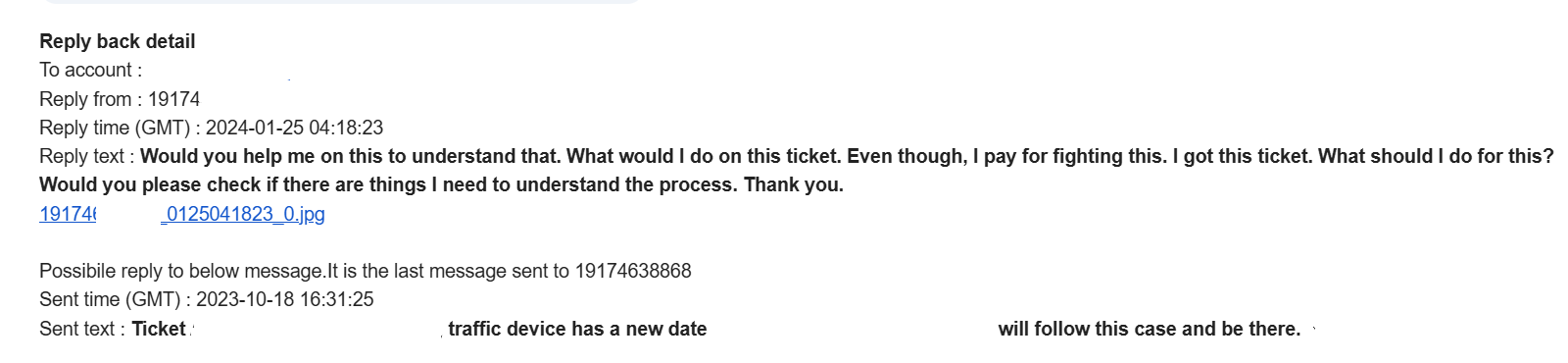
Good for support cases
- Ticket reminders and case updates
- Customer questions sent as SMS-text replies
- Photographic evidence sent as MMS replies
- Email inbox workflow for your service team